
Bruno Díaz


If you have worked on SEO to WordPress you will know that you will need a plugin that manages the core aspects of SEO, if you are able to complement some specialities in a specific area. We cannot recommend a specific one, as it would be dishonest, each professional or project will find one or the other better, and we are not paid any ;) commission. In the event that you have decided on Rank Math, today it is a very competitive option.
It offers better and better functionalities, incorporates a preconfigured version that will practically be an autopilot, and will also give us many personalized configuration options. It has a free version and a paid version, like almost all plugins, very economical for the amount of things it solves. Depending on your needs you can opt for one or the other, but if you want to work on SEO in WordPress at an advanced level, you will need the PRO version.
In the event that we want to install the free version, we go to plugins ⇒ add new plugin, search for it and install it.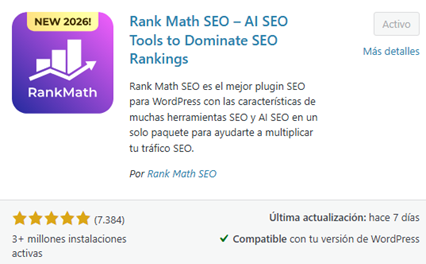
In the event that we opt for the PRO version, it is better to go directly to your website, choose the plan, and from there we download the file and go to plugins ⇒ add new plugin ⇒ upload plugin
Once you install Rank Math, you'll be presented with a very intuitive setup wizard: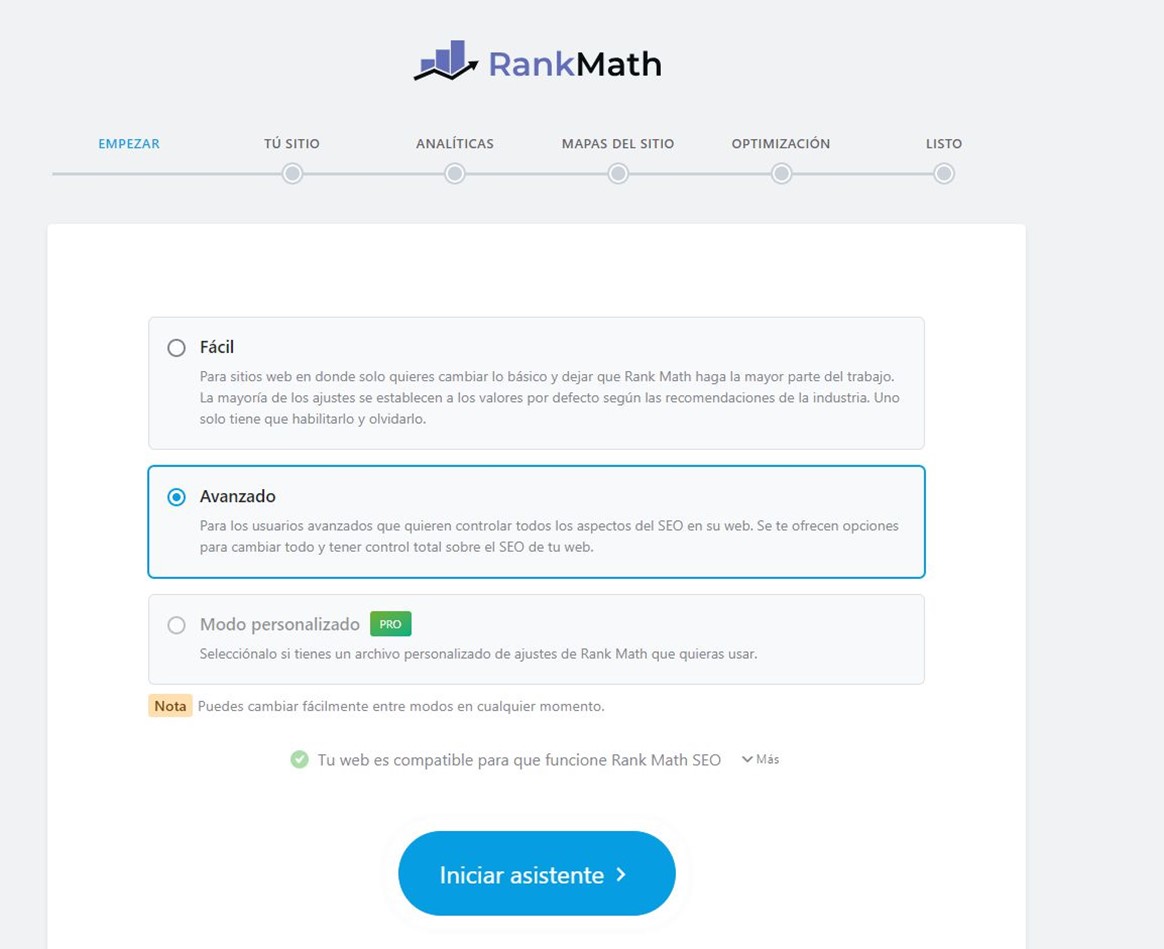
If YOAST was installed in the project, you can continue with it or in the case of wanting to move to Rank Math, it has a rogue importer, so you don't lose the past configurations. In the case of opting for the easy configuration, if it detects a plugin that may conflict (it could be a global SEO another or a partial one), it will suggest whether we want to import these configurations or not. In the case of importing, it is delicate, and it is always REVISED.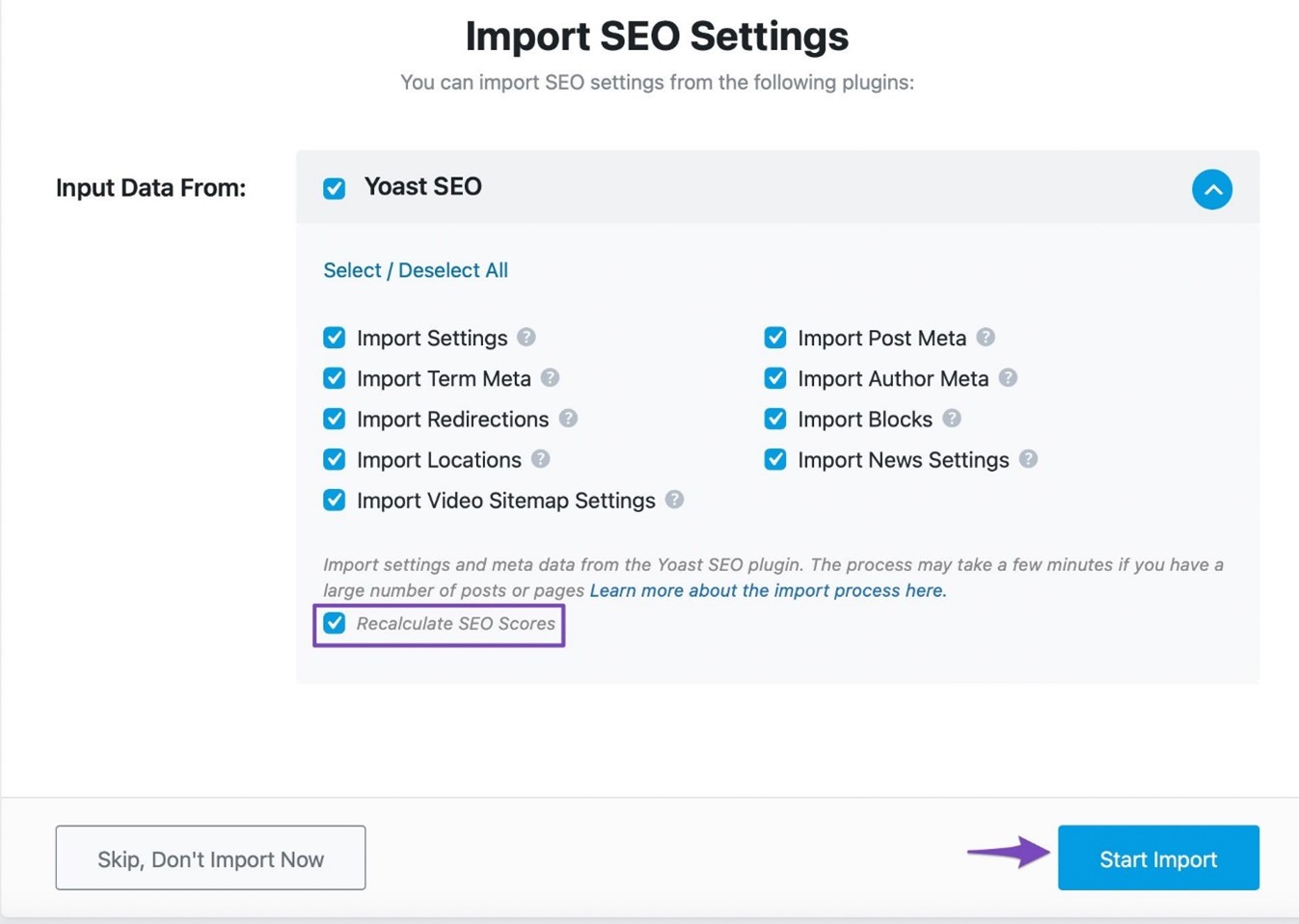
Here you will demand the important information of the business. Beyond the corporate aspects, the really key thing is to choose the type of business well, since this was linked to the type of schema that we delivered to Google. If you are not familiar with the options, visit Schema.org and find the one that is most suitable for your case.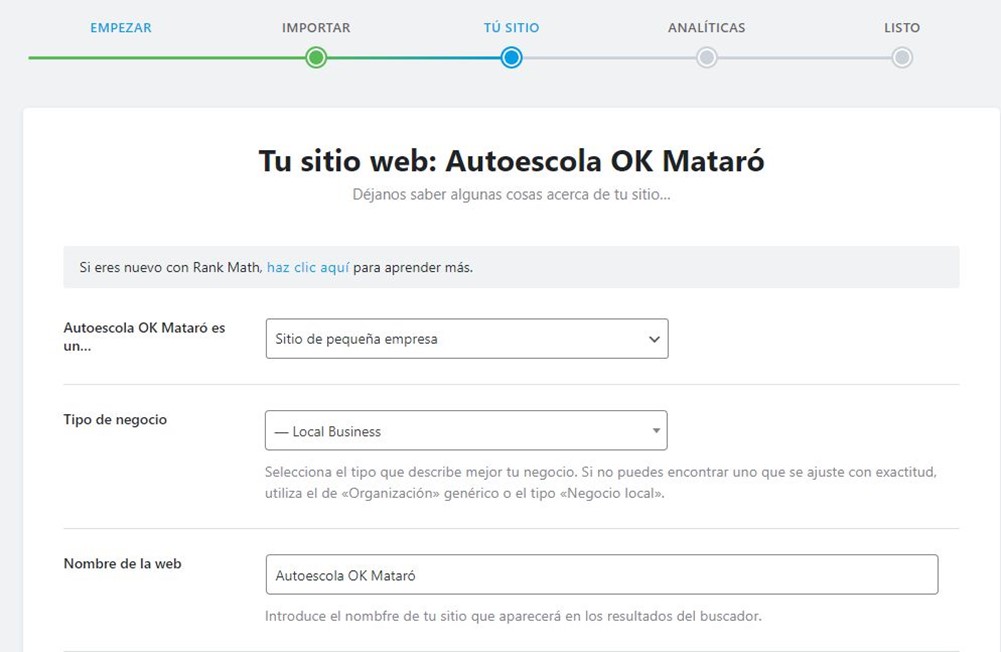
The next step is to connect with Google's services (Search Console and Analytics). This is optional, you can end up doing it with other programs or do it later: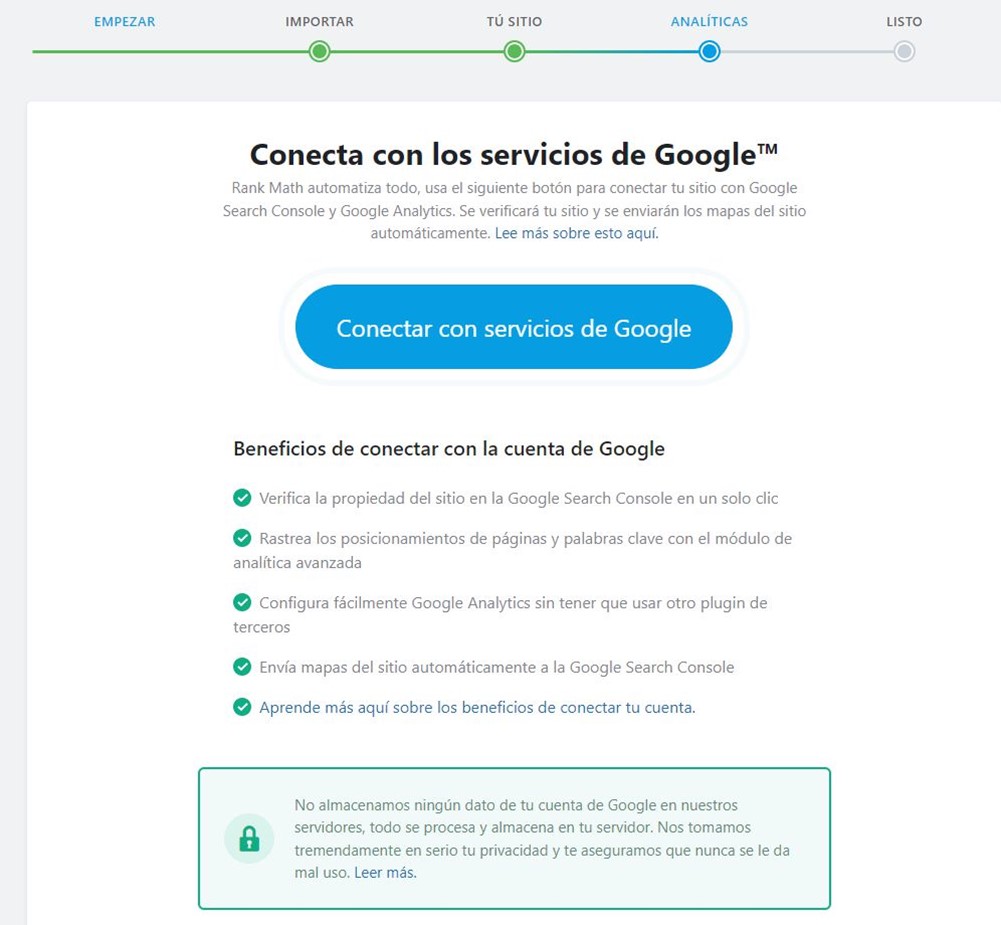
We assume that you opt for the option of the medium, usually when in doubt it is the best. Or you've done the basics before, and now we want to set up advanced aspects.
We can go to an entry, and we will see on the right a red box with the Rankmath options: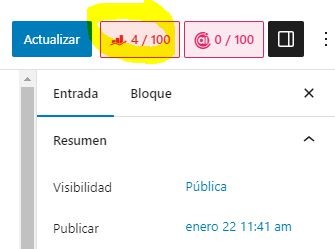
You will see that a preview of the snippet appears (the one we will see in the SERPs), which can be consulted or edited: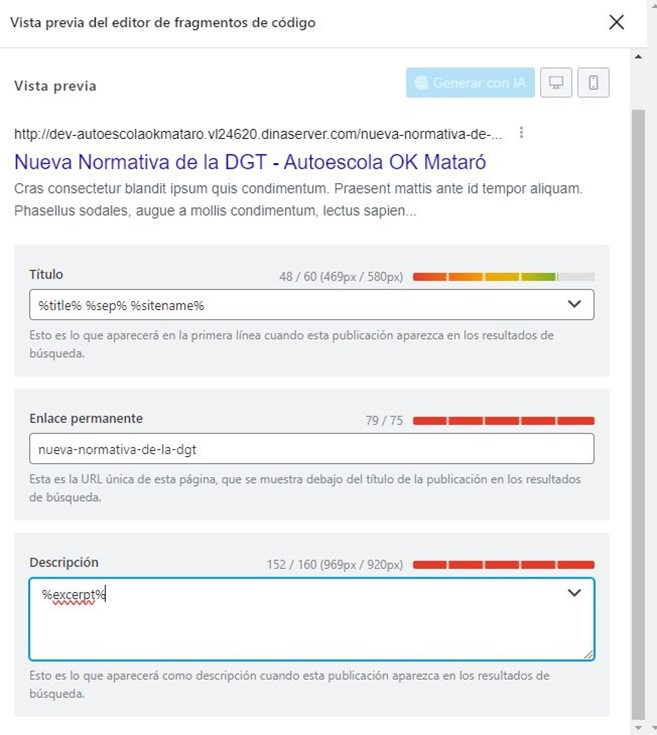
You have two options: configure it manually or define automatic rules. For large sites where you can't review each post daily, it makes sense to work with rules, although the ideal would be to customize each content manually if you have the time and resources.
In the example we show, we have configured the title to combine the title of the post + separator + company name. For the goal, we instruct you to use the excerpt (the summary of the post). However, this only works if your post titles are designed for SEO and if the excerpts are well-written and click-driven. If you don't meet these two requirements, automatic setup won't give you good results.
If we go to the Social tab, we will see how it would be previewed in the event that this content is shared on social networks: the headline, the photo, short description and the author. The photo will take it from the featured image field, if you can't upload a specific one for networks. Remember that these attributes at the level of open graph tags, explained in another post and which are a key element at the SEO and business level. As for the author, in times of EEAT and for a matter of human decency, it is better that it is attributed to the client, not to the developer (in the example it is normal because it is a dev- website).
The really interesting thing that will save you a lot of time is the fact that you establish general rules for each type of WordPress content, which can then be customized. Let's go to Rank Math ⇒ Titles and Meta.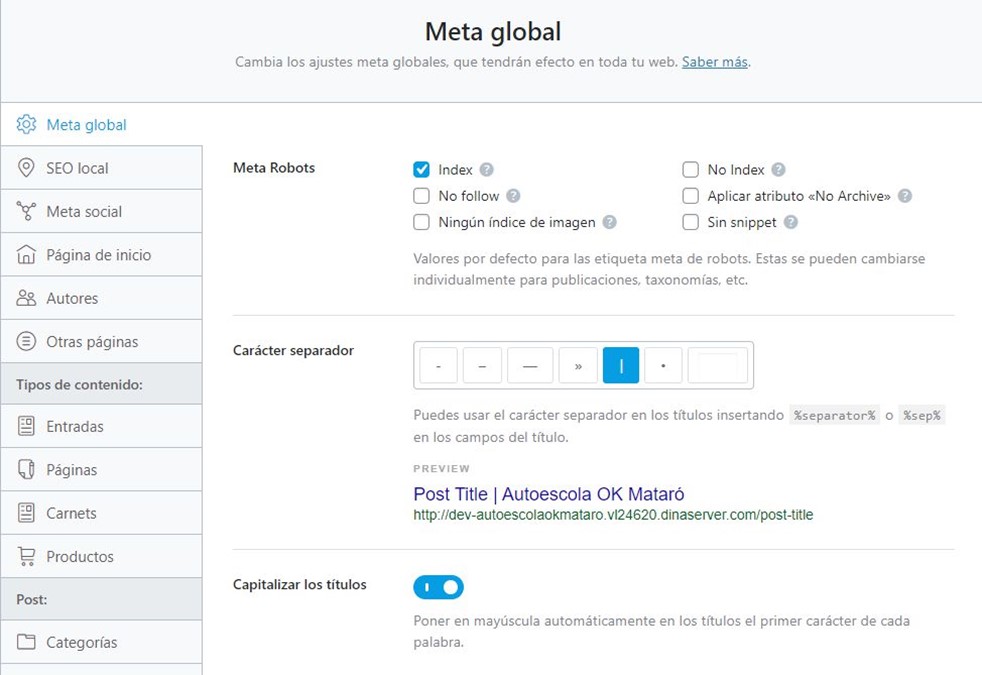
We will start by configuring some global rules, for all types of content:
Then we'll set up the ents, which are usually the basis of WordPress. Here we will define the general rules, but also establish the type of Schema for blog posts. Remember that previously we established the Schema of the site as Local Business, but the blog entries will be entities of type BlogPosting or Article.
Next, we recommend you configure breadcrumbs, although there is nothing more beautiful than saying it in Catalan: Ariadne's thread. Let's go to Rank Math ⇒ General Adjustments ⇒ Breadcrumbs. We activate and configure them.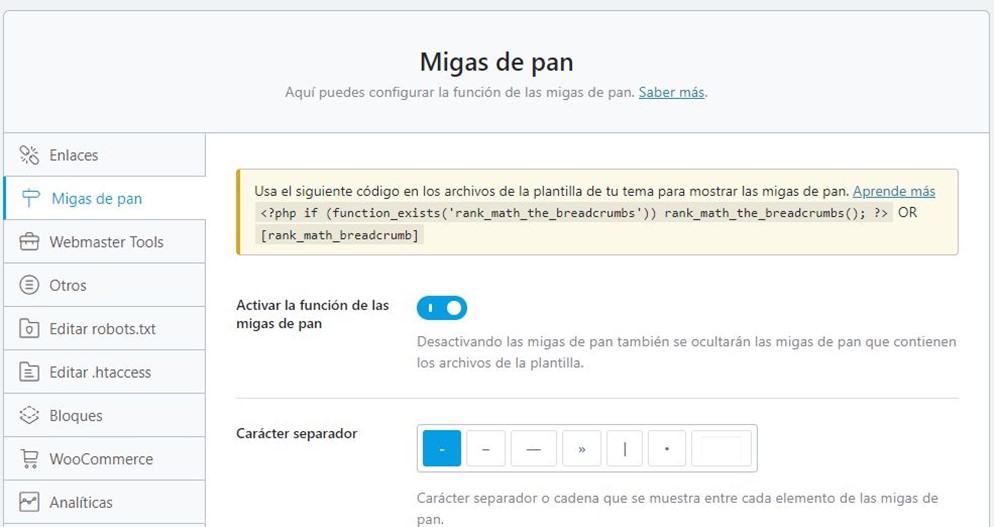
Here you have several configuration options, some more aesthetic (the separator), and others more strategic: in your hand you have to decide whether or not you want to include the man in the midday links, or if you want to take advantage of it to put a wider SEO.
Once this phase has been overcome, we will configure the sitemaps, the joy of the crown. Let's go to Rank Math ⇒ Site Map Adjustments.
In the general configuration, it already gives us a URL in which we can consult the sitemaps we are generating. From that moment on, I advise you to open it in a second tab or screen, to see how it changes as we make changes. They are always on Sunday/sitemap_index.xml.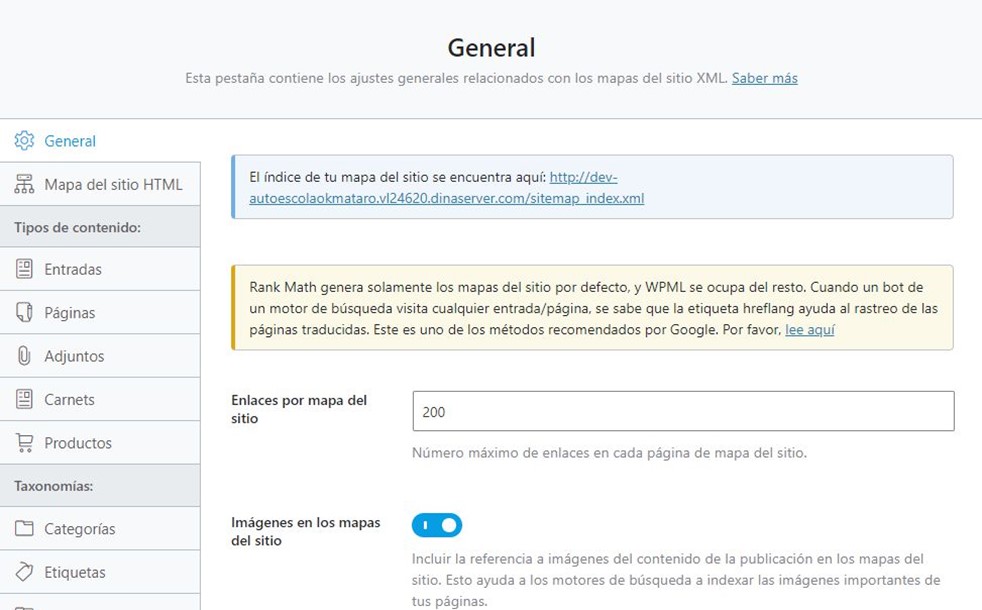
Important! When you see this screen, you have to ask yourself if you are missing or missing sitemaps. Not everything has to be in the sitemaps, beware. Only the quality URLs, and those that we want to index, should be in the sitemaps.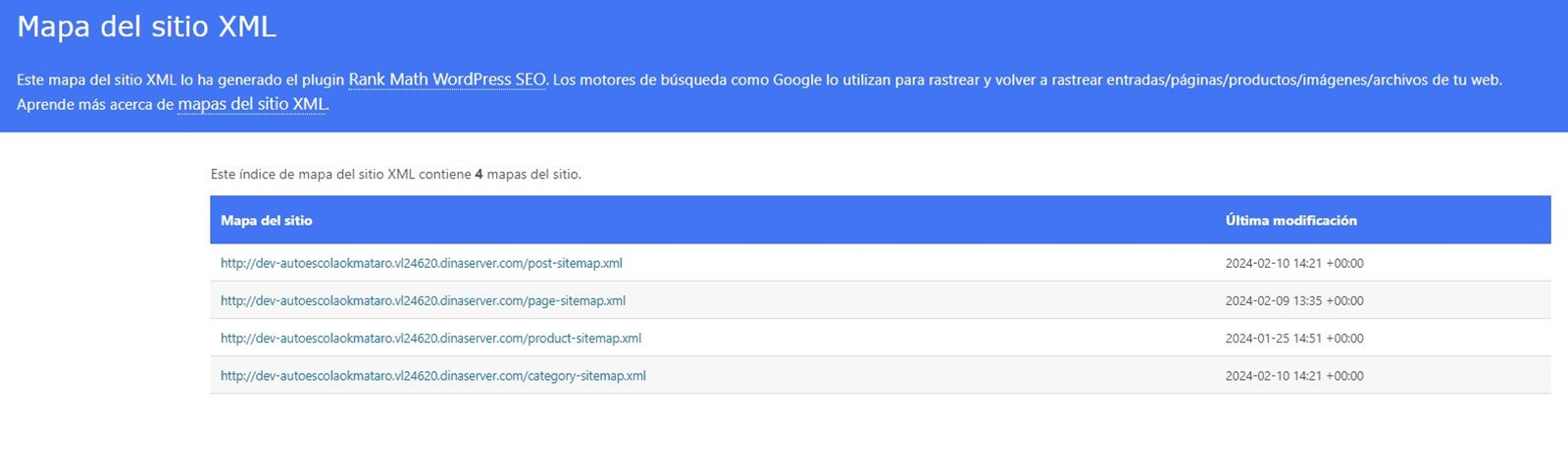
You will see that you will see a preview of the snippet (the one we will see in the SERPs), which can be consulted or edited.
You can opt for manual configuration, or set rules. For large sites where you don't have daily control, our advice is to implement rules, although obviously manual and personalized work for each content will be optimal.
In the case that we illustrate you will see that we configure that the title suggests the title of the post + separator + company name, while for the goal we ask you to take the excerpt, the summary field of the post. Be careful , if we do this, it will only work well if the titles make SEO sense and the summaries are filled out and with CTR orientation.
If we go to the Social tab, we will see how it would be previewed in the event that this content is shared on social networks: the headline, the photo, short description and author.
Rank Math has 15 modules that you can activate or deactivate and configure individually depending on the needs of the web page.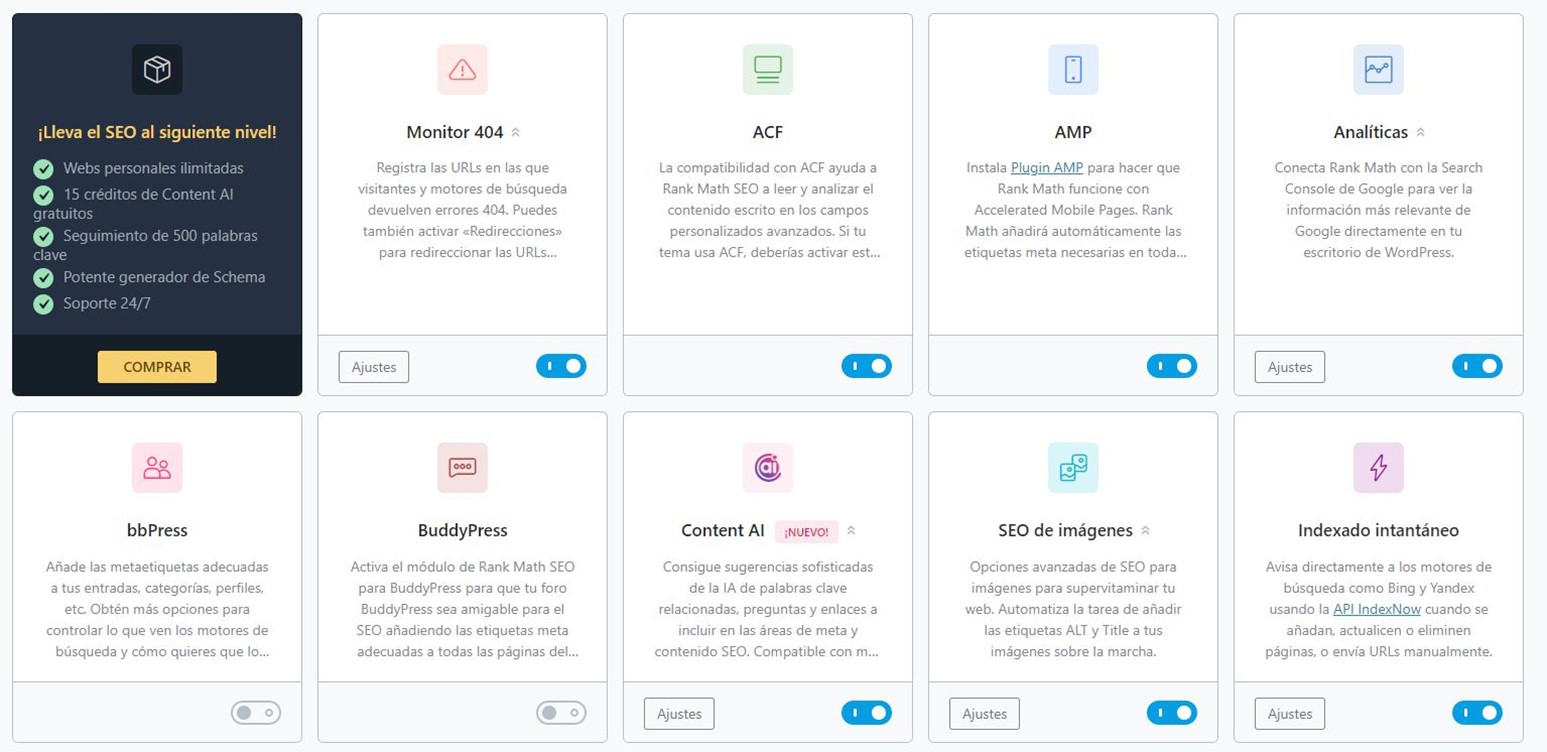
Some of the most outstanding son:
In the event that you have an online botiga that will usually be with Woocommerce, you have to pay special attention to the SEO and configuration implications.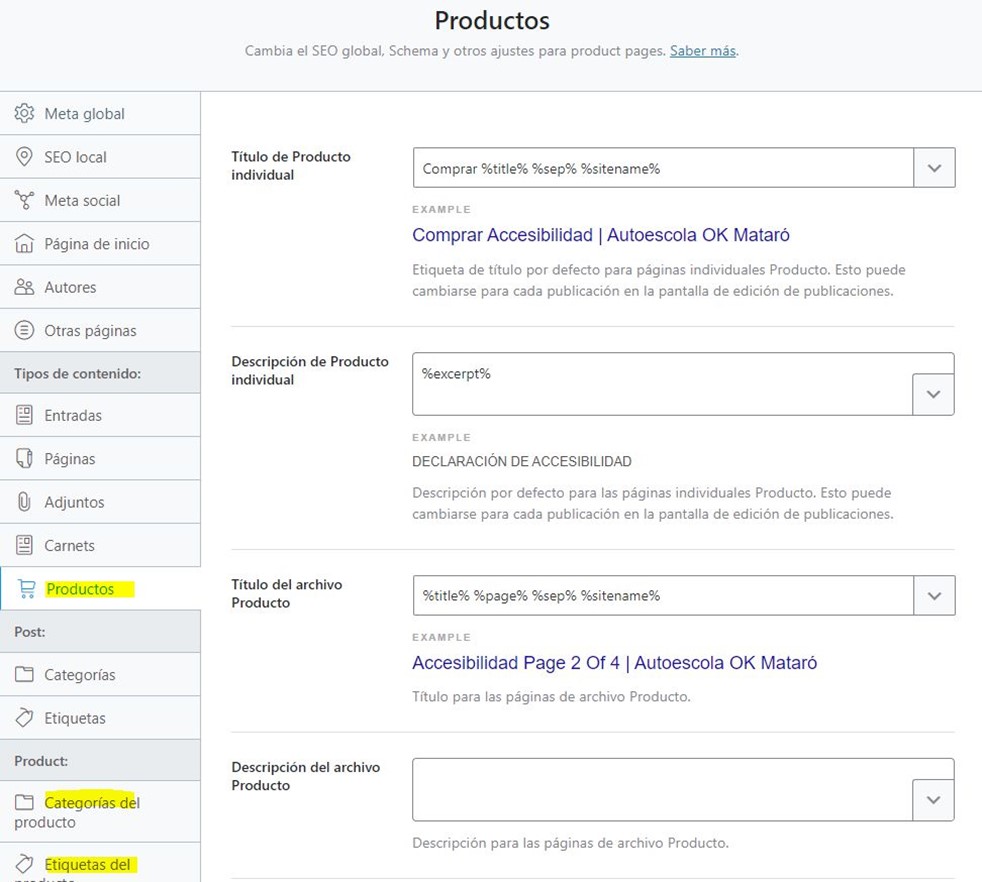
We can start with the titles and goals that affect us, which will usually be product and category sheets, assuming you are a reasonable person and block product tags, if not much encouragement with that. This choice must be consistent by going through the sitemaps section and activating and deactivating only the Woocommerce components that we want to position, blocking the straw, as we have to do with the blog. VERY IMPORTANT: By default product categories are not sent to the sitemap, unless you like strong emotions, active.
Here we can put rules, for example, if we sell products we can pursue this search intention by establishing as title "Buy" + product name, or commercial strengths for the descriptions. And in the case of products, make sure that for Schema they are implemented as products.
Then if we go to Rankmath => general settings => Woocommerce. This has a lot of power and at the same time it is very delicate: it allows us to establish URL rules and if we work with markups, choose which field to take for Schema, very TOP.
Here's the best bet, others are accepted:
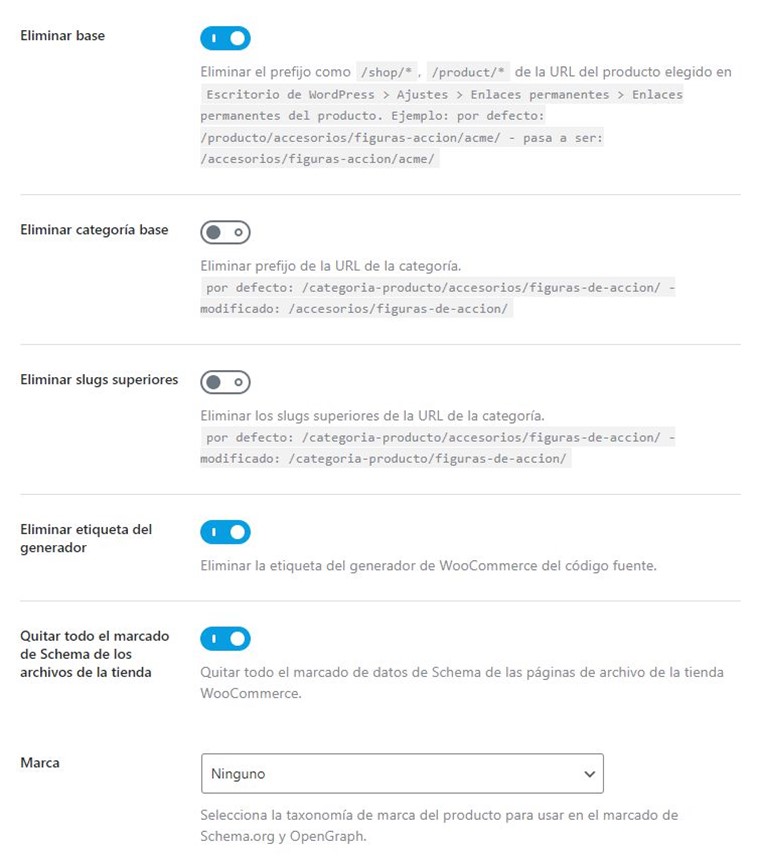
I think URL structures are one of the most overrated things in SEO, both from the perspective of many people who work on them, and many clients. The impact is minimal. But I have a want to make things clean and beautiful, go ahead. Watch out for more than one aesthetic thing, we must have other things if we are going to touch these rules, such as:
That said, I'd go to Rantmath=> general settings=> links and remove the category base: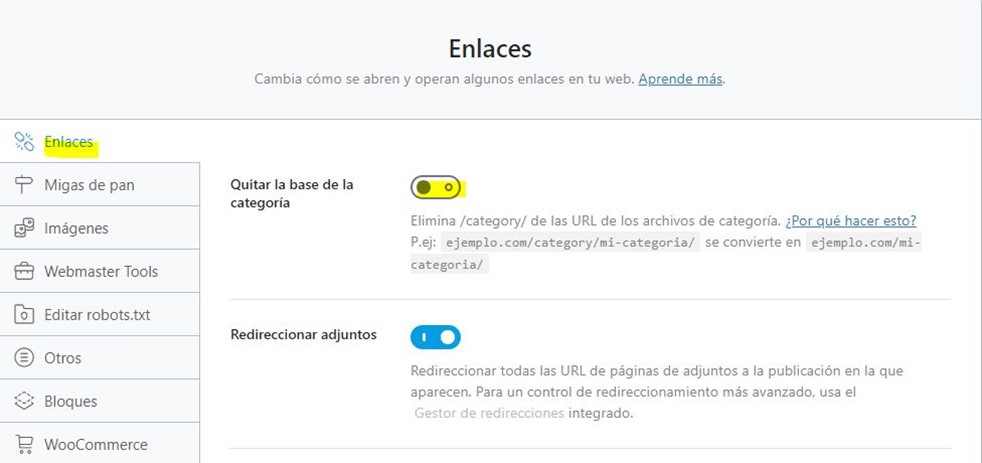
That way we avoid the domain.extension/category/such and sleep more peacefully. This affects the posts, if you want it to happen with the products, you have to consult the section above about Woocommerce.
Note: only propose changes in URL structures on newly created websites or in the process of migration with resources. With a website up and running, it's a harakiri.
Rank Math has just launched AI Link Genius, an event that promises to end one of the usual on-page SEO pain points: maintaining a coherent and effective internal link structure.
Beyond the business name, this tool is basically an internal link management suite that detects structural problems in your WordPress and resolves them automatically. It's not just a suggestion system, but a set of functionalities that work together to keep your site's link architecture in good shape.
The difference with other plugins is in how detection works. Instead of searching for exact keywords, AI Link Genius analyzes entire paragraphs to understand the context. AI reads the content, interprets the intent, and suggests links that make sense at that specific point in the reading.
The flow is simple: you click on "Generate", the AI proposes a page to link, and with another click the link is inserted. This keeps the writing pace going without having to go out and search for URLs manually.
One of the most useful functions. It detects those pages that do not receive any internal links (the so-called "orphaned pages") and helps you to reintegrate them into the structure of the site. These pages exist, are public, but they are invisible, but they are invisible for the trackers, but they are not linked to them. It's not cool.
It works as a system of continuous surveillance. It scans both internal and external links for 404 errors, and alerts you exactly where they are. It's especially useful on sites with a lot of content or that have been active for years, where it's easy for outdated links to accumulate.
Sometimes we mark internal links as nofollow by mistake, blocking the flow of authority between pages. The tool identifies these cases and allows them to be corrected with one click, which is especially relevant if you work with external writers who do not always control these technical details.
But on large sites, this feature can save you days of work. It allows you to replace URLs throughout the site, change text widths in bulk, or modify both elements at the same time. It includes a filter system to fine-tune searches and, crucially, a rollback function in case something goes wrong.
Everything is recorded in a history, so you can revert changes if you see that they didn't work as expected.
The (Keyword Mapping) lets you create structured relationships between keywords and URLs. You define a main keyword, assign the destination URL, and add variations (synonyms, related phrases). You can do this manually or use Rank Math's Content AI integration to generate them automatically.
The idea is to strategically strengthen the three pillar pages maintain a natural link. You can approve links manually or set the system to automatically insert them into new and existing content.
Instead of browsing page by page looking for problems, AI Link Genius concentrates all the information in a dashboard. Here you see:
Step 1: Enable the Module
First, you need to enable the Link Genius module. View Rank Math SEO → Dashboard from your WordPress dashboard. Locate the Link Genius module and activate it (in these cases only if you have the PRO version).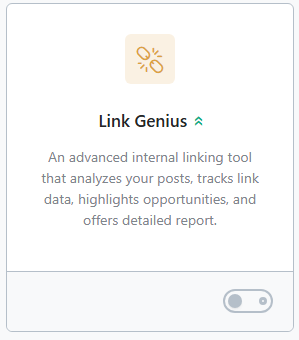
Step 2: Access the Links Interface
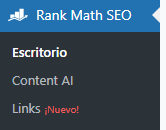
Once enabled, access Rank Math SEO → Links to access the centralized interface. From here you will be able to manage all the functionalities of AI Link Genius.
Step 3: Setting Up the First Audit
On the Overview tab, click Crawl to start your first link audit. Choose whether you want to verify all links or only broken links, and choose between internal, external, or both.
Beyond the technical functionalities, the real value lies in time savings and consistency. A well-linked site internally improves the user experience (fewer dead pages, smoother navigation) and helps distribute authority among important pages.
The advantage over doing it manually is the scale: managing internal links on a 50-page site is feasible; doing it on a 500 or 5,000-page site manually is unfeasible. This is where automation makes sense.
Rank Math has been positioning itself as a serious alternative to Yoast for some time, and AI Link Genius is another step in that direction. Internal link management has always been one of those tasks that everyone knows they should do but ends up leaving for later because of the amount of manual work involved.
This tool does not reinvent anything, but it automates processes that until now have required a lot of time or external payment tools. If you're already using Rank Math, it makes sense to give it a try. If you are evaluating SEO plugins for WordPress, now Rank Math has one more argument to consider.

Hello! drop us a line


Rank Math is today a very competitive SEO plugin option for Wordpress. Learn how to make the most of it!